
CMS Guide
Table of Contents
Page Templates List:
- Blank Page: This is a blank content page where any available section can be used. Only the header and footer elements will exist. It can be added to any theme to the CMS Theme. Link to template preview (opens in new tab)
- Article Page: Link to template preview (opens in new tab)
- Event Details Page: Link to template preview (opens in new tab)
Page Template Notes:
In which theme should I create my page? / Which theme should my page be assigned to?
To use one of the CMS page templates, you must create your page inside the theme where the desired CMS page template resides. You may later assign the page to another theme if needed.
What if I don't need all the sections used in a template?
Before using a CMS page template to create a page, determine if you’re going to need all the sections used in that template. Then, after using the template to create a new page, remove the sections from the page which aren’t needed BEFORE SAVING THE NEW PAGE. This prevents those sections from ever being created and we avoid cluttering the system with unused sections and modules.
See General Tips/Advice for CMS Users.
Can I create a CMS page without using one of the CMS Page Templates?
See General Tips/Advice for CMS Users.
General Content Editor advice
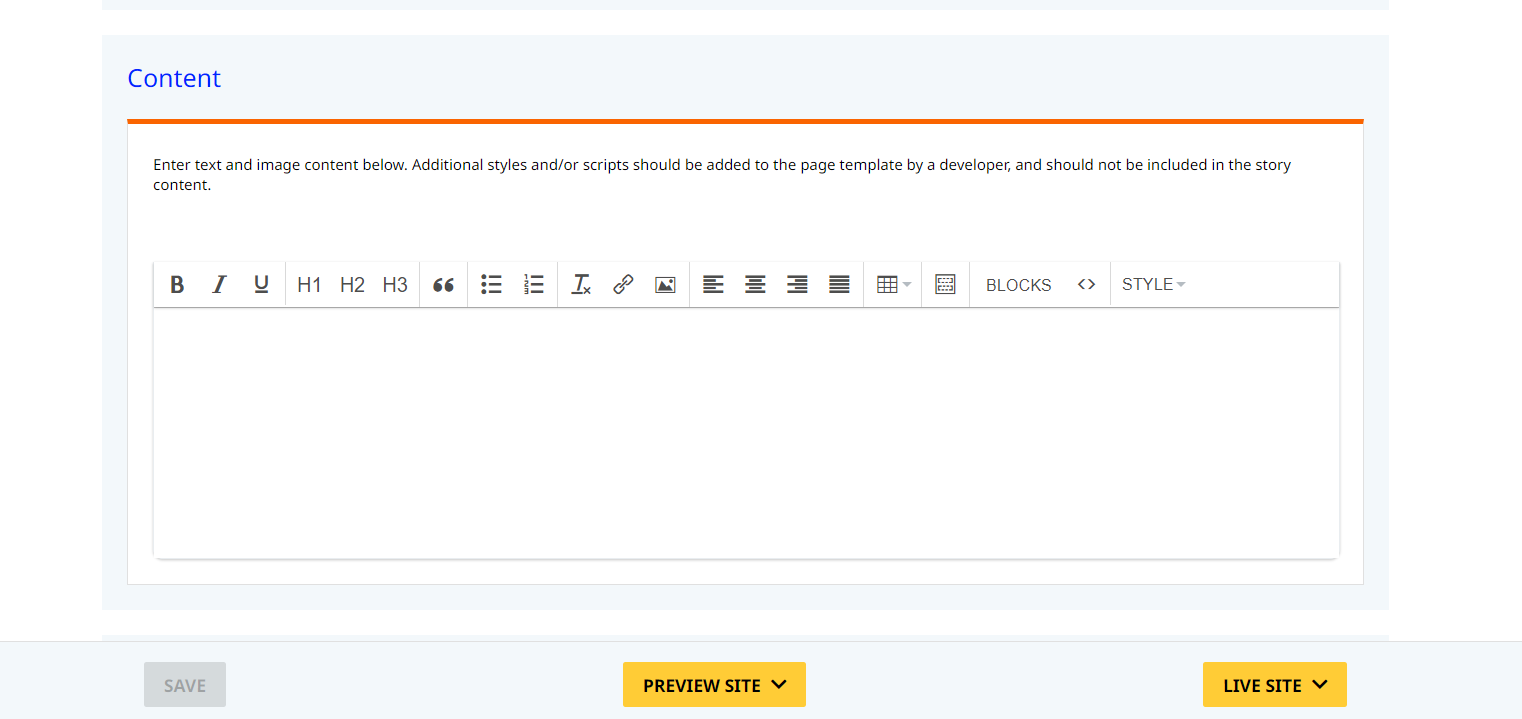
The Content Editor
Working With Custom HTML Modules' Content Editors
-
What is the Content Editor?
The Content Editor is the text editor you see in custom html modules
-
How do I replace placeholder "lorem ipsum" text?
The Content Editor can be finicky. To replace placeholder or unwanted text, we recommend that you first click the “BLOCKS” button in the toolbar to reveal outlines surrounding block-level elements. Then, select the text you wish to replace and type in your desired text. Or, you can place your cursor at the end of the text you want to replace, add your desired text, and then select and delete the placeholder text preceding it. We do NOT recommend selecting all placeholder text in the editor and deleting it before you add your desired content. As a result you may accidentally erase necessary markup that the content depends on. It is always best to edit text elements one at a time rather than deleting everything you don’t want from the start.
-
Can I copy and Paste from other sources?
Be very careful when copy/pasting text content from other sources into a Custom HTML module's content editor. When copying from an external document, take steps to ensure the text you are copying is plain text (as opposed to rich text.) When copying from a web page, make sure you are ONLY including text and not actual HTML tags (h1, h2, p etc.) as this could result in unintended styling/format inconsistencies.
-
How do I change the appearance of text content (color, font size, etc)?
The “STYLE” dropdown in the toolbar can be used to edit the styling/appearance of content. Keep in mind that when you add a style from the dropdown, it does not overwrite other styles previously applied to the element. This allows greater flexibility in cases where you may need more than one style applied, but you will need to remember to uncheck undesired styles after applying them.
Please refer to Style Management for examples of classes/styles you may apply.
Keep in mind that changing the appearance or styles of text should be done SPARINGLY - for the sake of consistency across pages, it is best to stick with the module's default styling whenever possible.
-
How do I add/edit a link?
The "insert/edit link" button in the toolbar is used to create and modify links:
To create a new link, type your desired link text within the content editor, select it, and then click the "insert/edit link" button. This may be tricky if you're creating a new link next to an already-existing link. To do this, place your cursor at the end of the existing link's text and then press the right arrow key, so your cursor is outside the existing link. Then, type the new link's text, select it and click the "insert/edit link" button.
To modify an existing link, click into the middle of the link text within the content editor, then click the "insert/edit link" button.
Note: Using proper link text is very important. For more details, see "Does it matter what I use for link text?" in General Tips/Advice for CMS Users. -
How do I add/edit an image?
The "asset picker" button in the toolbar allows you to add images into the content editor. To modify an existing asset, click the asset and then click the "asset picker" button. Not all custom HTML modules were made with the intent to have an image placed in them. (Tip: If your default placeholder content did not contain an image, you should avoid adding one with this tool.)
Note: If you're including an image in a Custom HTML module, remember to consider the image alt text (which is editable through the "asset picker" button), and include a value when necessary. For more details, see "Do I need to update/include alt text for every image?" in General Tips/Advice for CMS Users. -
How do I add a code snippet?
The "insert code snippet" button in the toolbar adds pre-made snippets of code into the content editor. Note that code snippets are primarily (but not always) used as a way to revert either the entire content of a Custom HTML Module to its default state, or to revert a part of its content to its original state. For example, if you accidentally delete the quote in one of the Custom HTML Modules in a "Two Testimonials" section, you can use a code snippet to add a default quote which you can then edit as needed. In most cases you will not need to use code snippets unless you're attempting to "fix" a module (i.e. bring back original content which was since removed.)
IMPORTANT: Be very careful to only use code snippets that are intended for use in the specific module you’re editing. In most cases the name of the code snippet should partially or exactly match the name of the module you’re editing. A list of all code snippets that are intended for use within a module will appear in that module's parent section's documentation in the Section Guide. Do not use a code snippet when the section name in the title of the code snippet does not match the section you are currently editing. For example, if you're editing a section created from a section template labeled as "Intro Copy" you should only be using code snippets whose titles include "Intro Copy."
-
I've made a mistake and would like to revert to the original "lorem ipsum" placeholder content. Is there a way to do that?
Check to see if the module you're editing has a default code snippet available. The name of the snippet should match the name of your module (minus the given section name prefix.) If so, you may delete the entire content and then insert the appropriate code snippet. Some modules don't have default code snippets available, but they may have other snippets which could replace specific portions of your content.
-
Does it matter which levels of headings (H1, H2, etc) I use in my content?
Yes. For SEO and accessibility purposes, it is important that your page’s heading structure is hierarchical. This means that your page’s top heading needs to be an h1 heading.
You should also be careful to avoid skipping heading levels (i.e. using an h3 heading before an h2 has been used, etc.) If you need to change the appearance of a heading without changing the level, apply one of the heading classes from the content editor's "STYLE" dropdown (see Style Management for a list of these heading style classes.)
General Tips/Advice for CMS Users
-
How can I ensure that my content will be accessible to all users?
Be sure to follow all recommendations and instructions given in this guide, particularly the recommendations involving link text, image alt text, and heading levels. To learn more about accessibility, please see Accessibility for Radancy CMS Publishers (opens in new tab).
-
Can I change the layout assignment of a page/section/module?
You should never change a layout assignment unless specifically instructed to do so in the relevant section's documentation found in the Section Guide. This will almost always lead to unintended results.
-
Can I add a module to a section?
You should never add a module to a section unless specifically instructed to do so in the relevant section's documentation found in the Section Guide. This will almost always lead to unintended results.
-
Can I create a CMS page without using one of the CMS Page Templates?
Yes, but this is not recommended as creating a page without using a CMS Page Template will require you to select a page layout. To avoid selecting the incorrect layout, we recommend using one of the available CMS Page Templates, in all cases.
If you are looking to create a "blank" page, see the next question.
-
How do I create a "blank" page?
To create a blank page, click the "Add Page" button in the "CMS Primary Theme" theme and select the "Blank Page" page template.
If you are looking to create a "blank" page, see the next question.
-
Which theme should my page be assigned to?
All CMS pages should be assigned to the "CMS Primary Theme" theme.
DO NOT assign any CMS pages to the "Default Theme (GST)" theme. This theme is enabled for CMS due to system requirements, but it is NOT intended to be used as a theme for CMS Pages.
-
Do I need to update/include alt text for every image?
Every time you add or replace an image file, you should consider whether to include alt text for the image. In some cases, such as when the image is considered descriptive and not essential to the page content, alt text may be left blank. For more details, please see this alt text decision tree. Not only are these considerations essential in making the site accessible to non-visual users, it will also improve SEO.
-
Does it matter what I use for link text?
It matters a lot. To make links accessible to all users, use link text that would make sense to users if taken out of the surrounding context. For example, "learn more about our benefits" is acceptable, whereas "click here" or "learn more" are not. This is important in all situations but be particularly careful when adding/editing links inside Custom HTML modules, as you'll have full control over what text is included in a link.
Additional Notes
How can I add to or update the notes to this section?
Search for this module [CMS Guide Additional Notes] to add as many notes as you'd like right here. Be careful to not delete any of the content above or below your notes! Remember to publish the changes to see them reflected here.
Your additional notes here:
No notes added yet
Style Management
Default Content Editor styles:
Default Paragraph Example (please note that copy will automatically change color to accommodate different backgrounds):
Lorem ipsum dolor sit amet, consectetur adipiscing elit, sed do eiusmod tempor incididunt ut labore et dolore magna aliqua
Italic Paragraph Example (Note: if you need true italic copy, see dropdown option below):
Lorem ipsum dolor sit amet, consectetur adipiscing elit, sed do eiusmod tempor incididunt ut labore et dolore magna aliqua
Underline Paragraph Example:
Lorem ipsum dolor sit amet, consectetur adipiscing elit, sed do eiusmod tempor incididunt ut labore et dolore magna aliqua
Inline Link Example:
Lorem ipsum dolor sit amet, consectetur adipiscing elit, sed do eiusmod tempor incididunt ut labore et dolore magna aliqua
Heading 1
Heading 2
Heading 3
Unordered List:
- List Item 1
- List Item 2
- List Item 3
- List Item 4
- List Item 5
Ordered List:
- List Item 1
- List Item 2
- List Item 3
- List Item 4
- List Item 5
Blockquote:
(this is a blockquote) Lorem ipsum dolor sit amet, consectetur adipiscing elit, sed do eiusmod tempor incididunt ut labore et dolore magna aliqua. Ut enim ad minim veniam, quis nostrud exercitation ullamco laboris nisi ut aliquip ex ea commodo consequat.
Table:
| Table Cell 1 | Table Cell 2 | Table Cell 3 |
| Table Cell 4 | Table Cell 5 | Table Cell 6 |
Begin Style Dropdown Options:
Button 1 / Button Alignment - Center
Font Weight - Medium
Section Guide
Before using a section from this guide, please read the corresponding documentation for that section. Documentation is found above each section in this guide.
Note that sections are labeled based on which menu they can be found in after clicking the "add section" button on any page:
- [use existing/orange ] - find this section in the "Use Existing" Menu.
- [add new/yellow ] - find this section in the "Add New" Menu.
Keep in mind that when a section from the "Use Existing" Menu is edited, every instance of that section is edited. Sections added via the "Add New" Menu are safe to be edited freely, as a new instance of the section is created every time it is added to a page.
Section Title: Related Content Dynamic - (Section 10a)
CMS enabled:
Add New / Use Existing:
Associated Code Snippets: N/A
Notes:
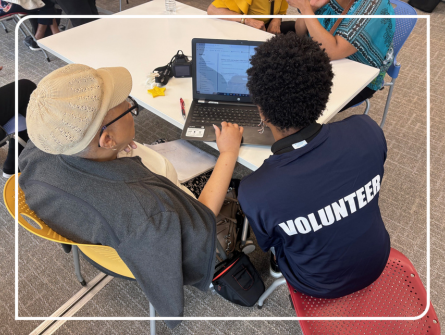
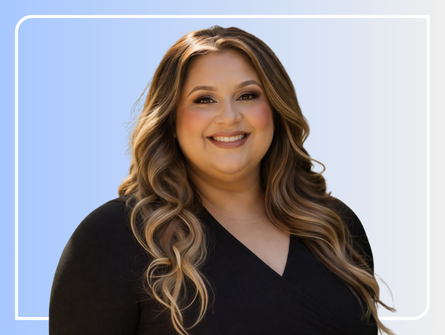
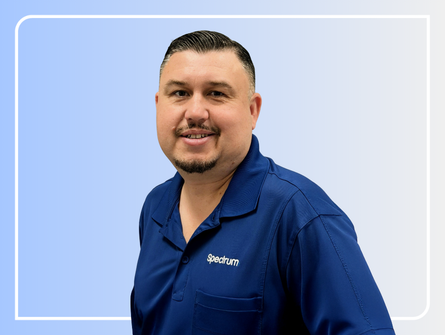
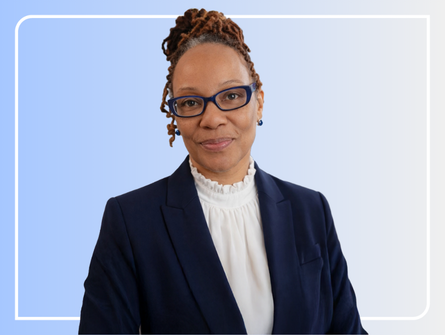
Features 3 content or offsite content pages tagged with the "Related Content" CPM Channel. Note that if this section is placed on a page with job data mappings (i.e. job details, search results, content pages with added job data mappings), only content from the channel with matching job data mappings will be shown. If less than 3 matches are found, content from the feed module's default content list will be shown instead. Only developers are able to edit this default content list.





















































Section Title: Static Banner Hero - Section 11a
Note To Developer: Please include documentation for this section!
Lorem Ipsum Dolor Sit

Section Title: Full Width static Hero Image - Section 11b Sepc
Note To Developer: Please include documentation for this section!
Lorem Ipsum Dolor Sit
Section Title: Hero - Section 12a Homepage Hero Video
Note To Developer: Please include documentation for this section!
Section Title: Video Hero - Section 13a MP4
Note To Developer: Please include documentation for this section!
Section Title: Hero - Section 13b Media Only
Note To Developer: Please include documentation for this section!

Section Title: Hero - Section 13c with Intro Copy
Note To Developer: Please include documentation for this section!
Lorem Ipsum
Lorem ipsum dolor sit amet, consectetur adipiscing elit, sed do eiusmod tempor incididunt ut labore et dolore magna aliqua. Ut enim ad minim veniam, quis nostrud exercitation ullamco laboris nisi ut aliquip ex ea commodo consequat.

Section Title: Multi Item - Section 14a Home Job List
Note To Developer: Please include documentation for this section!

Lorem Ipsum
Lorem ipsum dolor sit amet consectetur adipiscing elit. Quisque faucibus ex sapien vitae pellentesque sem placerat. In id cursus mi pretium tellus duis convallis.
Open jobs:
Lorem Ipsum
Lorem ipsum dolor sit amet consectetur adipiscing elit. Quisque faucibus ex sapien vitae pellentesque sem placerat. In id cursus mi pretium tellus duis convallis.
Lorem Ipsum
Lorem ipsum dolor sit amet consectetur adipiscing elit. Quisque faucibus ex sapien vitae pellentesque sem placerat. In id cursus mi pretium tellus duis convallis.
Open jobs:
Section Title: Copy - Section 15a
CMS enabled:
Add New / Use Existing:
Associated Code Snippets:
v1 - Section 15 - Copy - CMS
Notes:
No additional notes.
Lorem Ipsum dolor sit amet
Lorem ipsum odor amet, consectetuer adipiscing elit. Tempor elementum elit integer lobortis potenti praesent tempus ultrices. Parturient nec suspendisse ultricies ullamcorper ac congue. Velit justo rhoncus viverra proin primis duis metus elementum litora.
Section Title: Large Image left and Large Copy left - Section 16a homepage
Note To Developer: Please include documentation for this section!

Q&A
Meet with First Last Name to learn more about how their role has expanded at Spectrum.
Section Title: Large Image left and Large Copy right - Section 16b Large Copy with Arrows
Note To Developer: Please include documentation for this section!
Q&A
Meet with First Last Name to learn more about how their role has expanded at Spectrum.
Section Title: Multi Item - Section 17a Large Numbers no Sub Copy
Note To Developer: Please include documentation for this section!
Lorem ipsum dolor sit amet
##
Lorem ipsum dolor sit amet
Lorem ipsum dolor sit amet
###
Lorem ipsum dolor sit amet
Lorem ipsum dolor sit amet
##
Lorem ipsum dolor sit amet
Section Title: Multi Item - Section 17b Large Numbers with Sub Copy
Note To Developer: Please include documentation for this section!
Lorem ipsum dolor sit amet
##
Lorem ipsum dolor sit amet
Lorem ipsum dolor sit amet
###
Lorem ipsum dolor sit amet
Lorem ipsum dolor sit amet
##
Lorem ipsum dolor sit amet
Lorem ipsum dolor sit amet.
Section Title: Image and Copy - Section 18a
CMS enabled:
Add New / Use Existing:
Associated Code Snippets:
v1 - Section 18 - Blockquote - CMS
v1 - Section 18 - Copy - CMS
Notes:
The quote section uses a unique font size. Do not expect font-size altering style options to work for the quote. If a font size must be changed, please use the "clear formatting" button to reset the copy to site default.
Lorem ipsum lorem ipsum odor amet, consectetuer adipiscing elit, quam imperdiet sapien pellentesque.
Lorem, Ipsum
Lorem Ipsum
Lorem Ipsum dolor sit amet.
Section Title: Large Image right and Copy left - Section 18d Quote text and button with arrows
Note To Developer: Please include documentation for this section!
Lorem ipsum lorem ipsum odor amet, consectetuer adipiscing elit, quam imperdiet sapien pellentesque.
Lorem, Ipsum
Lorem Ipsum
Lorem Ipsum dolor sit amet.
Section Title: Image right and Copy left - Section 18g Quote text with Altru video pop-up
Note To Developer: Please include documentation for this section!
Lorem ipsum lorem ipsum odor amet, consectetuer adipiscing elit, quam imperdiet sapien pellentesque.
Lorem, Ipsum
Section Title: CTA - Section 19a Article Tiles
Note To Developer: Please include documentation for this section!

Section Title: Related Content Static - Section 20a four column
Note To Developer: Please include documentation for this section!
Section Title: Job List - Section 21a
CMS enabled:
Add New / Use Existing:
Associated Code Snippets:
None
Notes:
To modify Job Category CTA, please select mappings in the CTA module settings.
Lorem Ipsum
- Supervisor, Outside Sales Livonia, Michigan
- Account Executive, Retail Big Box Nederland, Texas
- Account Executive, Retail Big Box Cleveland Heights, Ohio
Section Title: Testimonial - Section 22a Circle Headshot
Note To Developer: Please include documentation for this section!

Spectrum lorem ipsum odor amet, consectetuer adipiscing elit, quam imperdiet sapien pellentesque.
Firstname, Job Title
Section Title: Testimonial - Section 22b No Headshot
Note To Developer: Please include documentation for this section!
Spectrum lorem ipsum odor amet, consectetuer adipiscing elit, quam imperdiet sapien pellentesque.
Firstname, Job Title
Section Title: Learn More Footer - Section 23a
Note To Developer: Please include documentation for this section!
Lorem Ipsum
Lorem ipsum dolor sit amet consectetur adipiscing elit. Quisque faucibus ex sapien vitae pellentesque sem placerat. In id cursus mi pretium tellus duis convallis.
Section Title: Social media Blog footer - Section 24a
Note To Developer: Please include documentation for this section!
Lorem Ipsum
Lorem ipsum dolor sit amet, consectetur adipiscing elit, sed do eiusmod tempor incididunt ut labore et dolore magna aliqua.
Section Title: Copy - Section 25a Bullet List Triangles
Note To Developer: Please include documentation for this section!
- First question formatted here? Answer to question goes here.
- Lorem ipsum odor amet, consectetuer adipiscing elit
- Ac turpis luctus nascetur purus aliquet. Curabitur facilisis ex dolor, augue proin placerat.
- Blandit per ex volutpat pretium sagittis semper ultricies. Efficitur neque velit placerat; potenti potenti dignissim. Rhoncus morbi donec porta platea hendrerit scelerisque diam.
- Maximus euismod finibus lorem eleifend placerat platea feugiat quam amet. Class est himenaeos volutpat adipiscing cras vitae.
Section Title: Related Content Static - Section 26a Three column
Note To Developer: Please include documentation for this section!
Section Title: Multi Item - Section 27b Tiles with Blue BG Custom Buttons
Note To Developer: Please include documentation for this section!
Lorem ipsum odor amet, consectetuer adipiscing elit. Tempor elementum elit integer lobortis potenti praesent tempus ultrices.

Lorem Ipsum
Lorem Ipsum dolor sit amet, lorem ipsum dolor sit amet
Lorem Ipsum
Lorem Ipsum dolor sit amet, lorem ipsum dolor sit amet
Lorem Ipsum
Lorem Ipsum dolor sit amet, lorem ipsum dolor sit amet
Lorem Ipsum
Lorem Ipsum dolor sit amet, lorem ipsum dolor sit amet
Section Title: Multi Item - Section 27c Learn More buttons
Note To Developer: Please include documentation for this section!
Lorem ipsum odor amet, consectetuer adipiscing elit. Tempor elementum elit integer lobortis potenti praesent tempus ultrices.

Section Title: Multi Item - Section 28a Awards Tiles White BG
Note To Developer: Please include documentation for this section!

SUBHEAD
Lorem ipsum dolor sit amet, consectetur adipiscing elit.
SUBHEAD
Lorem ipsum dolor sit amet, consectetur adipiscing elit.
SUBHEAD
Lorem ipsum dolor sit amet, consectetur adipiscing elit.
SUBHEAD
Lorem ipsum dolor sit amet, consectetur adipiscing elit.
SUBHEAD
Lorem ipsum dolor sit amet, consectetur adipiscing elit.
SUBHEAD
Lorem ipsum dolor sit amet, consectetur adipiscing elit.
SUBHEAD
Lorem ipsum dolor sit amet, consectetur adipiscing elit.
Section Title: Multi Item - Section 28b Awards Tiles Blue BG
Note To Developer: Please include documentation for this section!
SUBHEAD
Lorem ipsum dolor sit amet, consectetur adipiscing elit.
SUBHEAD
Lorem ipsum dolor sit amet, consectetur adipiscing elit.
SUBHEAD
Lorem ipsum dolor sit amet, consectetur adipiscing elit.
SUBHEAD
Lorem ipsum dolor sit amet, consectetur adipiscing elit.
SUBHEAD
Lorem ipsum dolor sit amet, consectetur adipiscing elit.
SUBHEAD
Lorem ipsum dolor sit amet, consectetur adipiscing elit.
SUBHEAD
Lorem ipsum dolor sit amet, consectetur adipiscing elit.
Section Title: Multi Item - Section 29a
CMS enabled:
Add New / Use Existing:
Associated Code Snippets:
v1 - Section 29 - Copy - CMS
v1 - Section 29 - Item - CMS
Notes:
The copy for this section uses unique font size. Do not expect font size changing style options to be effective. If a font size must be changed, please use the "clear formatting" button to reset the copy to site default.
Lorem Ipsum dolor sit amet
Lorem ipsum dolor sit amet, consectetur adipiscing elit, sed do eiusmod tempor incididunt ut labore et dolore magna aliqua. Ut enim ad minim veniam, quis nostrud exercitation ullamco laboris nisi ut aliquip ex ea commodo consequat.
SUBHEAD
Lorem ipsum dolor sit amet, consectetur adipiscing elit.
SUBHEAD
Lorem ipsum dolor sit amet, consectetur adipiscing elit.
SUBHEAD
Lorem ipsum dolor sit amet, consectetur adipiscing elit.
SUBHEAD
Lorem ipsum dolor sit amet, consectetur adipiscing elit.
SUBHEAD
Lorem ipsum dolor sit amet, consectetur adipiscing elit.
SUBHEAD
Lorem ipsum dolor sit amet, consectetur adipiscing elit.
SUBHEAD
Lorem ipsum dolor sit amet, consectetur adipiscing elit.
Section Title: Image left and Copy right banner - Section 30a - blue background
Note To Developer: Please include documentation for this section!
Lorem Ipsum
Lorem ipsum dolor sit amet, consectetur adipiscing elit, sed do eiusmod tempor incididunt ut labore.
Section Title: Image and Copy - Section 31a
CMS enabled:
Add New / Use Existing:
Associated Code Snippets:
v1 - Section 31 - Copy - CMS
Notes:
No additional Notes

Lorem ipsum dolor sit amet, consectetur adipiscing elit, sed do eiusmod tempor incididunt ut labore et dolore magna aliqua. Ut enim ad minim veniam, quis nostrud exercitation ullamco laboris nisi ut aliquip ex ea commodo consequat.
Section Title: Image and Copy - Section 31b
CMS enabled:
Add New / Use Existing:
Associated Code Snippets:
v1 - Section 31 - Copy - CMS
Notes:
No additional Notes
Lorem ipsum dolor sit amet, consectetur adipiscing elit, sed do eiusmod tempor incididunt ut labore et dolore magna aliqua. Ut enim ad minim veniam, quis nostrud exercitation ullamco laboris nisi ut aliquip ex ea commodo consequat.
Section Title: Extra Large Image and Copy right- Section 31c
Note To Developer: Please include documentation for this section!
Lorem ipsum dolor sit amet, consectetur adipiscing elit, sed do eiusmod tempor incididunt ut labore et dolore magna aliqua. Ut enim ad minim veniam, quis nostrud exercitation ullamco laboris nisi ut aliquip ex ea commodo consequat.
Section Title: Extra Large Image and Copy Right- Section 31d
Note To Developer: Please include documentation for this section!
Lorem ipsum dolor sit amet, consectetur adipiscing elit, sed do eiusmod tempor incididunt ut labore et dolore magna aliqua. Ut enim ad minim veniam, quis nostrud exercitation ullamco laboris nisi ut aliquip ex ea commodo consequat.
Section Title: Large Image right and Copy right- Section 32a with button
Note To Developer: Please include documentation for this section!
Lorem Ipsum dolor sit amet
Lorem ipsum dolor sit amet, consectetur adipiscing elit, sed do eiusmod tempor incididunt ut labore et dolore magna aliqua.

Section Title: Large Image left and Copy right - Section 32b with Button
Note To Developer: Please include documentation for this section!
Lorem Ipsum dolor sit amet
Lorem ipsum dolor sit amet, consectetur adipiscing elit, sed do eiusmod tempor incididunt ut labore et dolore magna aliqua.
Section Title: 2x2 Large Image background and Copy bottom- Section 33a tile
Note To Developer: Please include documentation for this section!

SUBHEAD
Lorem ipsum dolor sit amet, consectetur adipiscing elit, sed do eiusmod tempor incididunt ut.
SUBHEAD
Lorem ipsum dolor sit amet, consectetur adipiscing elit, sed do eiusmod tempor incididunt ut.
Section Title: Single Image top and Copy bottom- Section 33b
Note To Developer: Please include documentation for this section!
SUBHEAD
Lorem ipsum dolor sit amet, consectetur adipiscing elit, sed do eiusmod tempor incididunt ut.
Section Title: 2x2 Multi Item Images - Section 34a Large images and Copy bottom
Note To Developer: Please include documentation for this section!


Lorem Ipsum
Lorem ipsum dolor sit amet, consectetur adipiscing elit, sed do eiusmod tempor incididunt ut labore et dolore magna aliqua. Ut enim ad minim veniam, quis nostrud exercitation ullamco laboris nisi ut aliquip ex ea commodo consequat.
Lorem Ipsum
Lorem ipsum dolor sit amet, consectetur adipiscing elit, sed do eiusmod tempor incididunt ut labore et dolore magna aliqua. Ut enim ad minim veniam, quis nostrud exercitation ullamco laboris nisi ut aliquip ex ea commodo consequat.
Section Title: Multi Item - Section 34b Video CTAs
Note To Developer: Please include documentation for this section!
Lorem Ipsum
Lorem ipsum dolor sit amet, consectetur adipiscing elit, sed do eiusmod tempor incididunt ut labore et dolore magna aliqua. Ut enim ad minim veniam, quis nostrud exercitation ullamco laboris nisi ut aliquip ex ea commodo consequat.
Lorem Ipsum
Lorem ipsum dolor sit amet, consectetur adipiscing elit, sed do eiusmod tempor incididunt ut labore et dolore magna aliqua. Ut enim ad minim veniam, quis nostrud exercitation ullamco laboris nisi ut aliquip ex ea commodo consequat.
Section Title: Multi Item Image - Section 34c Large images and copy bottom
Note To Developer: Please include documentation for this section!
Lorem Ipsum
Lorem ipsum dolor sit amet, consectetur adipiscing elit, sed do eiusmod tempor incididunt ut labore et dolore magna aliqua. Ut enim ad minim veniam, quis nostrud exercitation ullamco laboris nisi ut aliquip ex ea commodo consequat.
Section Title: Multi Item - Section 35a Header image with FAQ
Note To Developer: Please include documentation for this section!

LOREM IPSUM
Lorem ipsum odor amet, consectetuer adipiscing elit. Nec suscipit ac quis facilisi; habitant platea dictum class ex. Tellus neque ex tortor; vestibulum id phasellus pretium. Faucibus feugiat ultricies gravida arcu fusce at orci accumsan euismod.
LOREM IPSUM
Lorem ipsum odor amet, consectetuer adipiscing elit. Nec suscipit ac quis facilisi; habitant platea dictum class ex. Tellus neque ex tortor; vestibulum id phasellus pretium. Faucibus feugiat ultricies gravida arcu fusce at orci accumsan euismod.
LOREM IPSUM
Lorem ipsum odor amet, consectetuer adipiscing elit. Nec suscipit ac quis facilisi; habitant platea dictum class ex. Tellus neque ex tortor; vestibulum id phasellus pretium. Faucibus feugiat ultricies gravida arcu fusce at orci accumsan euismod.
LOREM IPSUM
Lorem ipsum odor amet, consectetuer adipiscing elit. Nec suscipit ac quis facilisi; habitant platea dictum class ex. Tellus neque ex tortor; vestibulum id phasellus pretium. Faucibus feugiat ultricies gravida arcu fusce at orci accumsan euismod.
Section Title: Multi Item - Section 35b FAQ List
Note To Developer: Please include documentation for this section!
LOREM IPSUM
Lorem ipsum odor amet, consectetuer adipiscing elit. Nec suscipit ac quis facilisi; habitant platea dictum class ex. Tellus neque ex tortor; vestibulum id phasellus pretium. Faucibus feugiat ultricies gravida arcu fusce at orci accumsan euismod.
LOREM IPSUM
Lorem ipsum odor amet, consectetuer adipiscing elit. Nec suscipit ac quis facilisi; habitant platea dictum class ex. Tellus neque ex tortor; vestibulum id phasellus pretium. Faucibus feugiat ultricies gravida arcu fusce at orci accumsan euismod.
LOREM IPSUM
Lorem ipsum odor amet, consectetuer adipiscing elit. Nec suscipit ac quis facilisi; habitant platea dictum class ex. Tellus neque ex tortor; vestibulum id phasellus pretium. Faucibus feugiat ultricies gravida arcu fusce at orci accumsan euismod.
LOREM IPSUM
Lorem ipsum odor amet, consectetuer adipiscing elit. Nec suscipit ac quis facilisi; habitant platea dictum class ex. Tellus neque ex tortor; vestibulum id phasellus pretium. Faucibus feugiat ultricies gravida arcu fusce at orci accumsan euismod.
Section Title: 3x3 Multi Tile - Section 36a image and subcopy
Note To Developer: Please include documentation for this section!
SUBHEAD
Lorem ipsum odor amet, consectetuer adipiscing elit. Nec suscipit ac quis facilisi; habitant platea dictum class.
SUBHEAD
Lorem ipsum odor amet, consectetuer adipiscing elit. Nec suscipit ac quis facilisi; habitant platea dictum class.
SUBHEAD
Lorem ipsum odor amet, consectetuer adipiscing elit. Nec suscipit ac quis facilisi; habitant platea dictum class.
SUBHEAD
Lorem ipsum odor amet, consectetuer adipiscing elit. Nec suscipit ac quis facilisi; habitant platea dictum class.
SUBHEAD
Lorem ipsum odor amet, consectetuer adipiscing elit. Nec suscipit ac quis facilisi; habitant platea dictum class.
SUBHEAD
Lorem ipsum odor amet, consectetuer adipiscing elit. Nec suscipit ac quis facilisi; habitant platea dictum class.
Section Title: Three column multi Item - Section 37a Blue background
Note To Developer: Please include documentation for this section!
Subhead
Lorem ipsum odor amet, consectetuer adipiscing elit. Mattis aptent suspendisse vehicula taciti himenaeos. Laoreet bibendum tempus fames convallis euismod velit hac erat facilisi. Class montes vivamus feugiat pulvinar hac mi. Nunc nascetur lobortis commodo suspendisse platea phasellus, rhoncus tempor hac. Tristique dignissim hendrerit dolor vestibulum aenean torquent?
Subhead
Lorem ipsum odor amet, consectetuer adipiscing elit. Mattis aptent suspendisse vehicula taciti himenaeos. Laoreet bibendum tempus fames convallis euismod velit hac erat facilisi. Class montes vivamus feugiat pulvinar hac mi. Nunc nascetur lobortis commodo suspendisse platea phasellus, rhoncus tempor hac. Tristique dignissim hendrerit dolor vestibulum aenean torquent?
Subhead
Lorem ipsum odor amet, consectetuer adipiscing elit. Mattis aptent suspendisse vehicula taciti himenaeos. Laoreet bibendum tempus fames convallis euismod velit hac erat facilisi. Class montes vivamus feugiat pulvinar hac mi. Nunc nascetur lobortis commodo suspendisse platea phasellus, rhoncus tempor hac. Tristique dignissim hendrerit dolor vestibulum aenean torquent?
Section Title: Multi Item - Section 38a Three Altru Videos
Note To Developer: Please include documentation for this section!
Lorem Ipsum
Lorem ipsum dolor sit amet, consectetur adipiscing elit, sed do eiusmod tempor incididunt ut labore et dolore magna aliqua.
Lorem Ipsum
Lorem ipsum dolor sit amet, consectetur adipiscing elit, sed do eiusmod tempor incididunt ut labore et dolore magna aliqua.
Lorem Ipsum
Lorem ipsum dolor sit amet, consectetur adipiscing elit, sed do eiusmod tempor incididunt ut labore et dolore magna aliqua.
Section Title: Multi Item - Section 38c Two Altru Videos
Note To Developer: Please include documentation for this section!
Lorem Ipsum
Lorem ipsum dolor sit amet, consectetur adipiscing elit, sed do eiusmod tempor incididunt ut labore et dolore magna aliqua.
Lorem Ipsum
Lorem ipsum dolor sit amet, consectetur adipiscing elit, sed do eiusmod tempor incididunt ut labore et dolore magna aliqua.
Section Title: Multi Item - Section 38d Single Altru Video
Note To Developer: Please include documentation for this section!
Lorem Ipsum
Lorem ipsum dolor sit amet, consectetur adipiscing elit, sed do eiusmod tempor incididunt ut labore et dolore magna aliqua.
Section Title: Media - Section 39a Video Only
Note To Developer: Please include documentation for this section!
Section Title: Media - Section 39b Intro Copy and Video
Note To Developer: Please include documentation for this section!
Lorem ipsum
Lorem ipsum dolor sit amet, consectetur adipiscing elit, sed do eiusmod tempor incididunt ut labore et dolore magna aliqua.
Section Title: Job List - Section 42a
CMS enabled:
Add New / Use Existing:
Associated Code Snippets:
None
Notes:
No additional notes.
No recently viewed jobs
Section Title: Accordion - (Section 52a)
Suggested Use: "Ready To Apply?" Section on the "Application Process" Page
CMS enabled:
Add New / Use Existing:
Associated Code Snippets:
v1 - Section 52 - Copy: Use as a "reset" for the "Section 52 - Copy" module. Note that this will overwrite any existing copy with placeholder copy, which can then be edited as needed.
v1 - Section 52 - Toggle: Use as a "reset" for any "Section 52 - Toggle [number]" module. Note that this will overwrite any existing copy with placeholder copy, which can then be edited as needed.
v1 - Section 52 - Panel: Use as a "reset" for any "Section 52 - Panel [number]" module. Note that this will overwrite any existing copy with placeholder copy, which can then be edited as needed.
Notes: Do not edit the "Identifier" field on any of the "Section 52 - Toggle [number]" modules. This field's value is being leveraged for each toggle's ID attribute, which is essential for accordion functionality.
Dev Notes: This section utilizes the "Accordion" pattern/component.
CMS users are not able to add additional toggles and panels to this section. However developers may do this by adding additional "Section 52 - Toggle [number]" and "Section 52 - Panel [number]" modules to the section's 2nd column, and adding a unique value to the "Identifier" field on the new "Section 52 - Toggle [number]" module, which will be leveraged as the toggle's ID attribute. Target this ID in the SASS file to affiliate an SVG icon with that toggle, following the existing examples. Note that in the SASS file, all styling updates should be made in the section styles block, rather than in the "Accordion" default styles block.
Your future starts here: Let’s walk through the process
Interested in joining the Spectrum team? Whether you're exploring your first role or taking the next big step in your career, we make the application process simple, straightforward and transparent.
Here’s what you can expect:
Prepare to apply
Not ready to hit the ‘apply’ button for one of our open roles? Take some time to learn more about what it’s like to join our team.
- Head to the Life at Spectrum page for exclusive insight straight from our employees as they share their perspectives.
- You can also check out the latest Spectrum news by following us on LinkedIn.
- Not sure which job might be right for you? Explore our Fit Finder tool to get personalized job suggestions in just a few minutes.
Submit your application
Once you find a role that matches your skills, interests, and goals, submit your application online—it only takes a few minutes to get started.
Remember to update your resume and professional profile before applying. Here are a few tips to keep in mind:
- Make sure you meet the role qualifications. For example, if you apply for a role that requires 2 years’ customer service experience, make sure your years of experience are clearly reflected in your resume.
- Integrate keywords, including hard and soft skills and action verbs, from the job posting into your resume. Focus on keywords that appear more than once to connect your experience to the job requirements.
- Have limited work experience? Include school-related projects or volunteer work that demonstrate skills related to your role.
- Keep it short. Your resume should only be 1–2 pages and provide just an overview of your education, experiences and your achievements.
Assessments (If Applicable)
For certain roles, especially customer-facing or technical positions based in our call centers or stores, you may be asked to complete an assessment. This helps us understand how your skills align with the job and ensures we're setting you - and your future team - up for success.
Don’t worry: You’ll receive clear instructions and support before beginning any assessment.
Tip: Make sure you’re in a quiet, distraction-free setting where you have plenty of time to complete your assessment.
- Let’s talk If your application stands out, you’ll be invited to speak with a recruiter – either over the phone or via video. This is your opportunity to learn more about the position, the team, and what it’s like to work at Spectrum.
Pro tip: Be ready to share how your past experiences connect to the role you’ve applied for.
Interview time
Next, you may have one or more interviews with hiring managers or team members. These conversations are a two-way street – we want to learn about you, and we want you to get to know us too.
Depending on the team you’re meeting with, your interview may be over the phone, through video or onsite at one of our locations. You can expect...
- Decision and offerIf it’s a match, we’ll extend an offer and walk you through what comes next – from background check to your first day. If you’re not selected, we’ll keep your information on file for future opportunities that may be a better fit.
- Preparing for day oneOnce you accept an offer, we’ll guide you through our onboarding process so you’re fully set up for success. You’ll meet your team and receive the tools and resources you need to get started.
Section Title: CTA - (Section 53a)
Suggested Use: CTA Panel featuring an icon, copy, and a "go" button link. This template was specifically created to handle CTA sections on the "Application Process" Page.
CMS enabled:
Add New / Use Existing:
Associated Code Snippets: N/A
Notes: The copy's styling is not customizable in CMS. Use the "Section 53 - Link" Module's "Link Text" field for the bold text, and the "Short Description" field for the normal weighted text. Max character count limits apply.

Section Title: Third Party Widget - (Section 54a)
Suggested Use: "What's It Like To Apply?" Section on the "Application Process" Page
CMS enabled:
Add New / Use Existing:
Associated Code Snippets:
v1 - Section 54 - Copy: Use as a "reset" for the "Section 54 - Copy" module.
Notes: This section features videos from an Altru video feed: https://app.altrulabs.com/spectrum/apply. The video feed and the content in each "video card" are not editable in CMS.
What's it like to apply?
We’ve been there – and have some answers to your biggest questions.
Section Title: Copy - (Section 55a)
Suggested Use: "Application Status" Section on "Application Process" Page
CMS enabled:
Add New / Use Existing:
Associated Code Snippets:
v1 - Section 55 - Copy: use as a "reset" for the "Section 55 - Copy" module.
Notes: N/A
What’s your application status?
You can track your progress through the application process by visiting the Candidate Dashboard page.
Log in to your Candidate Dashboard. On the dashboard, you can view the Past Job Submittals section to review the status of your application. All submitted applications will be listed here, along with the current status of your application. Here's an example of what your Candidate Dashboard will look like.
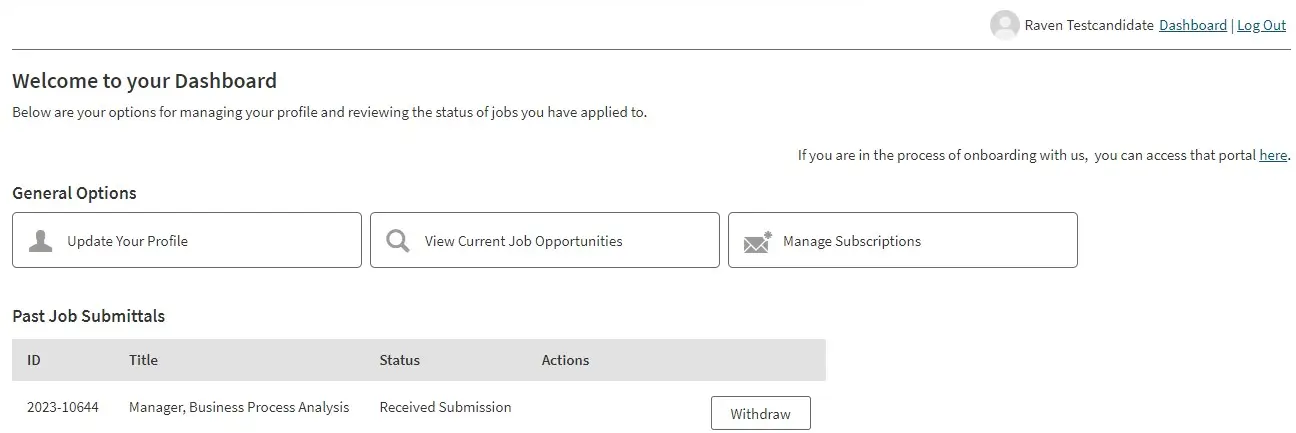
Below each submitted application, you’ll see one of these various statuses.
-
Received Submission
You’ve submitted an application for this role. If you have, a recruiter will review your application soon.
-
Under review
You are actively being reviewed and considered by a recruiter or a hiring manager.
-
Pending
You have an offer pending to be viewed. There should be a blue button that takes you to your offer.
-
Accepted
You have accepted your offer.
Section Title: 50-50 Top image and bottom copy Multi Item - Section 58a white
Note To Developer: Please include documentation for this section!
Lorem ipsum dolor sit amet, consectetur adipiscing elit, sed do eiusmod tempor incididunt ut labore et dolore magna aliqua. Ut enim ad minim veniam, quis nostrud exercitation ullamco laboris nisi ut aliquip ex ea commodo consequat.
Lorem ipsum dolor sit amet, consectetur adipiscing elit, sed do eiusmod tempor incididunt ut labore et dolore magna aliqua. Ut enim ad minim veniam, quis nostrud exercitation ullamco laboris nisi ut aliquip ex ea commodo consequat.
Section Title: Third Party Widget - (Section 59a)
Suggested Use: Military skills translator widget
CMS enabled:
Add New / Use Existing:
Associated Code Snippets: N/A
Notes: N/A
Section Title: CTA - (Section 60a)
Suggested Use: "Sign up for military office hours" link on "Military Recruiting Programs" page.
CMS enabled:
Add New / Use Existing:
Associated Code Snippets: N/A
Notes: When this section is placed on any page other than the CMS Guide, its link will appear as fixed in the bottom right corner of the screen.
Section Title: Image left and Copy right - Section 18i Tall Altru Video with Large Quotes and Button
Note To Developer: Please include documentation for this section!
Lorem ipsum lorem ipsum odor amet, consectetuer adipiscing elit, quam imperdiet sapien pellentesque.
Lorem, Ipsum